

Running Python code in the cloud without worrying about local setup is a game-changer. With the rise of collaborative and remote data science, Google Colab, often referred to as Google Notebook, has emerged as a top tool for coders, data scientists, and researchers.
Google Colab offers a powerful browser-based notebook interface, making it easy to write and execute Python code from any device, anywhere. Backed by Google’s cloud infrastructure and integrated with Google Drive, it empowers you to develop and share notebooks seamlessly.
What Is Google Colab?
Google Colab (short for Colaboratory) is a free Jupyter notebook environment that runs in the cloud and requires no setup. It supports Python and offers access to GPUs and TPUs, making it a great platform for AI, data analysis, and education.
Unlike traditional Jupyter Notebooks that require local setup via Anaconda or pip, Google Notebook is ready-to-use directly in the browser and comes pre-installed with major Python libraries like NumPy, Pandas, TensorFlow, Keras, and OpenCV.
Why Use Google Notebook for Your Projects
Using Google Colab over local environments offers several advantages:
- No installation or configuration required
- Free access to NVIDIA GPUs and TPUs
- Easily shareable via links or GitHub
- Compatible with Google Drive
- Ideal for data science, machine learning, deep learning, and education
- Supports real-time collaboration, similar to Google Docs
Key Features of Google Colab
Here are some standout features of Google Notebook:
- Free GPU and TPU Support
- Notebook Sharing & Comments
- Rich Text + Code Integration
- Real-Time Collaboration
- Direct Import from Google Drive/GitHub
- Support for Interactive Visualizations (Plotly, Matplotlib)
- Markdown, LaTeX, HTML Rendering
- Auto-save to Drive
- Pre-installed Python Libraries
Getting Started with Google Colab
Step 1: Open Google Colab
Go to https://colab.research.google.com
Step 2: Sign in with your Google Account
You’ll need a Google account to access the service.
Step 3: Create or Upload a Notebook
You can start a new notebook or upload one from your system or Google Drive.
Understanding the Google Colab Interface
The Google Colab UI resembles a standard Jupyter Notebook with added cloud features.
- Code Cells: Run Python code
- Text Cells: Add documentation using Markdown or HTML
- Toolbar: Save, Upload, Insert Cells, Runtime Settings
- Runtime Menu: Select hardware (GPU/TPU/CPU)
Image Alt: Google Notebook interface overview in browser
How Google Colab Compares with Jupyter Notebook
| Feature | Google Colab | Jupyter Notebook |
| Setup Required | No | Yes |
| Free GPU/TPU Access | Yes | No |
| Cloud Storage | Google Drive | Local File System |
| Collaboration | Real-Time Sharing | Manual Sharing |
| Cost | Free (with limits) | Free (self-hosted) |
| External Hosting | Yes (GitHub, Drive) | Yes (Manual Upload) |
Colab is best for quick experimentation and sharing, while Jupyter excels in offline or large data workflows.
Installing and Importing Python Libraries in Google Colab
Colab comes with most essential libraries, but if you need something custom:
!pip install seaborn
You can use ! to run shell commands:
!ls /usr/local/lib/python3.10/dist-packages
Or import standard libraries like:
import pandas as pd
import numpy as np
import matplotlib.pyplot as plt
Image Alt: Installing Python libraries in Google Notebook using pip
Real-Time Examples Using Google Notebook
Example 1: Data Cleaning with Pandas
import pandas as pd
df = pd.read_csv('https://raw.githubusercontent.com/datasciencedojo/datasets/master/titanic.csv')
df.dropna(inplace=True)
df['Age'] = df['Age'].astype(int)
df.head()
Example 2: Visualization with Seaborn
import seaborn as sns
sns.histplot(data=df, x='Age', hue='Survived')
These examples demonstrate how Colab supports data handling, cleaning, and visualization — all within your browser.
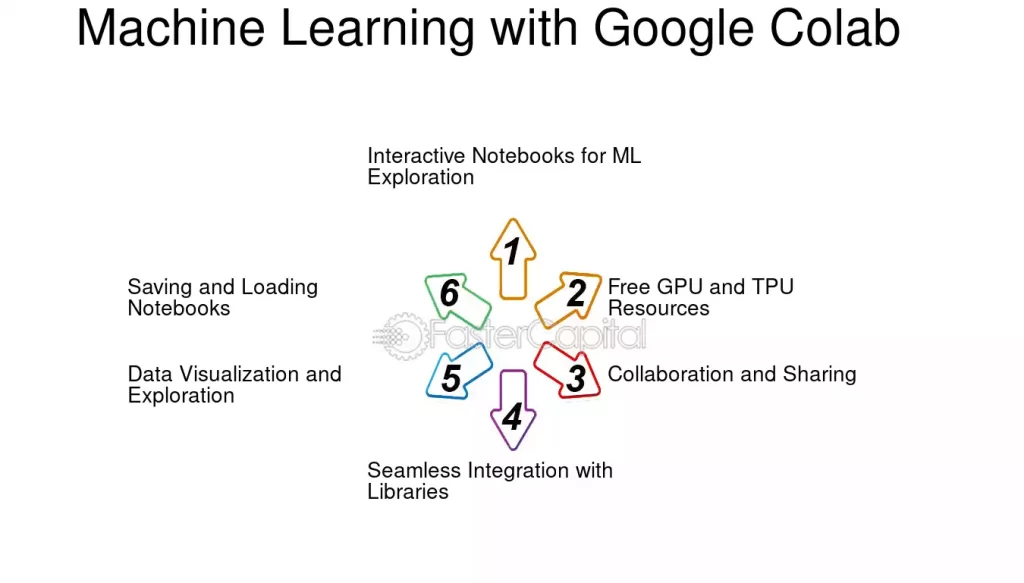
Using Google Colab for Machine Learning
fastercapital.com
With libraries like Scikit-learn and TensorFlow pre-installed, you can build and train models right away.
Example: Logistic Regression with Scikit-learn
from sklearn.linear_model import LogisticRegression
from sklearn.model_selection import train_test_split
X = df[['Age', 'Fare']]
y = df['Survived']
X_train, X_test, y_train, y_test = train_test_split(X, y, test_size=0.2)
model = LogisticRegression()
model.fit(X_train, y_train)
GPU/TPU Acceleration
To enable GPU/TPU:
- Click Runtime > Change Runtime Type > Hardware Accelerator
Google Notebook automatically uses your selected hardware for model training.
Integration with Google Drive and GitHub
Mounting Google Drive
from google.colab import drive
drive.mount('/content/drive')
This allows seamless access to files stored in Google Drive.
Loading Notebooks from GitHub
Go to File > Open Notebook > GitHub tab and paste a repository URL.
Limitations of Google Colab
While powerful, Colab has its constraints:
- 12-hour max runtime (can disconnect unexpectedly)
- Limited GPU availability (usage quota)
- No internet access for third-party APIs (in some modes)
- Cannot run without internet
- Code execution timeout after inactivity
For continuous training or large datasets, paid platforms or Colab Pro may be more appropriate.
Best Practices for Google Notebook Users
- Regularly download and back up notebooks
- Use smaller batch sizes to avoid GPU limits
- Split code across multiple cells for clarity
- Comment your code and use Markdown for documentation
- Save checkpoints in Drive after major changes
- Avoid hardcoding sensitive credentials
Security and Privacy in Google Colab
While Google Colab uses secure cloud infrastructure, follow these tips:
- Don’t share notebooks with sensitive data
- Avoid running untrusted code from GitHub
- Use OAuth2 or service accounts for authenticated APIs
- Disconnect Drive after usage
- Turn off sharing links when not in use
Internal and External Resources
Internal Links
- Python Environment Setup Guide
- How to pip install: Python Package Management
External DoFollow Links
- Google Colab Official Documentation
- Google Developers: Colab Help
- GitHub Repositories for Colab
Conclusion
Google Colab, or Google Notebook, is more than just a cloud-based Python IDE. It is a gateway to powerful, scalable, and collaborative computing. Whether you’re a student running your first Python script or a machine learning engineer training deep neural networks, Google Notebook delivers the flexibility and speed you need — all for free.
By understanding how to install libraries, handle data, run ML models, and collaborate in real time, you can unlock the full potential of Python programming without ever leaving your browser.
✦ SUMMARIZE THIS ARTICLE WITH AI
 ChatGPT
If you’re looking for a free, GPU-backed, shareable Python environment, Google Colab is your go-to platform. Bookmark this guide, share it with your network, and start experimenting.