
Modern data handling requires efficiency, accuracy, and automation. Whether working in finance, marketing, or operations, professionals rely heavily on spreadsheets to organize and analyze data.
While spreadsheets may appear simple at first glance, their true power lies in the use of spreadsheet formulas. These formulas transform raw data into meaningful insights, enabling faster and more accurate decision-making.
What Are Spreadsheet Formulas?
Spreadsheet formulas are expressions used to perform calculations, manipulate data, and automate tasks within spreadsheet software like Excel or Google Sheets.
A formula typically begins with an equals sign (=) and can include:
- Numbers
- Cell references
- Operators
- Functions
Example:
=A1 + B1
This formula adds values from two cells.
Importance of Spreadsheet Formulas
Spreadsheet formulas play a crucial role in data processing.
Key benefits:
- Automate repetitive calculations
- Reduce human error
- Improve productivity
- Enable real-time updates
Use cases:
- Financial analysis
- Sales tracking
- Budget planning
- Reporting
Basic Spreadsheet Formulas
Basic spreadsheet formulas are essential for beginners.
Common formulas:
1. Addition
=A1 + A2
2.Subtraction
=A1 – A2
3.Multiplication
=A1 * A2
4.Division
=A1 / A2
6.SUM Function
=SUM(A1:A10)
Adds a range of values.
7.AVERAGE Function
=AVERAGE(A1:A10)
Calculates the mean.
Intermediate Spreadsheet Formulas
Intermediate spreadsheet formulas provide more control over data.
1.IF Function
=IF(A1 > 50, “Pass”, “Fail”)
Used for conditional logic.
2.COUNT Function
=COUNT(A1:A10)
Counts numeric values.
3.CONCAT Function
=CONCAT(A1, B1)
Combines text.
Advanced Spreadsheet Formulas
Advanced spreadsheet formulas are used for complex data analysis.
1) VLOOKUP
=VLOOKUP(A2, A1:B10, 2, FALSE)
Finds values in a table.
2) INDEX and MATCH
More flexible than VLOOKUP.
=INDEX(B1:B10, MATCH(A1, A1:A10, 0))
ARRAY FORMULAS
Used for multiple calculations at once.
Real-Time Examples
Example 1: Sales Analysis
A company tracks daily sales using spreadsheet formulas.
- SUM calculates total sales
- AVERAGE finds daily average
- IF identifies high-performing days
Example 2: Student Performance
Spreadsheet formulas calculate grades and results automatically.
Example 3: Expense Tracking
Monthly expenses are categorized and calculated using formulas.
Spreadsheet Formulas in Business
Businesses rely on spreadsheet formulas for decision-making.
Applications:
- Financial forecasting
- Inventory management
- Data reporting
- KPI tracking
Logical Functions in Spreadsheet Formulas
Logical functions help make decisions within your spreadsheet formulas based on conditions.
Common Logical Functions:
1) IF Function (Advanced Use)
=IF(AND(A1>50, B1>50), “Pass”, “Fail”)
This checks multiple conditions at once.
2)OR Function
=IF(OR(A1>90, B1>90), “Top Performer”, “Average”)
3)NOT Function
=IF(NOT(A1>50), “Below Target”, “Achieved”)
Why Logical Functions Matter:
- Enable dynamic decision-making
- Improve automation
- Reduce manual analysis
Text Functions in Spreadsheet Formulas
Text manipulation is essential when working with names, emails, or formatted data.
Common Text Functions:
1.LEFT Function
=LEFT(A1, 4)
Extracts first characters
2.RIGHT Function
=RIGHT(A1, 3)
3.MID Function
=MID(A1, 2, 4)
Practical Example:
Extract domain from email:
=RIGHT(A1, LEN(A1)-FIND(“@”, A1))
Date and Time Functions
Spreadsheet formulas simplify date calculations.
Examples:
1.TODAY Function
=TODAY()
2.NOW Function
=NOW()
3.DATEDIF Function
=DATEDIF(A1, B1, “Y”)
Use Cases:
- Employee tenure calculation
- Project deadlines
- Financial reporting
Lookup and Reference Functions
These are powerful spreadsheet formulas for searching data.
HLOOKUP
Searches horizontally.
1)XLOOKUP (Modern Replacement)
=XLOOKUP(A2, A1:A10, B1:B10)
Benefits:
- More flexible than VLOOKUP
- Handles errors better
Conditional Formatting with Formulas
Conditional formatting uses spreadsheet formulas to highlight data.
Examples:
- Highlight values greater than 100
- Identify duplicates
- Show trends
Formula Example:
=A1>100
Dynamic Ranges in Spreadsheet Formulas
Dynamic ranges automatically adjust as data grows.
Example:
Using OFFSET:
=SUM(OFFSET(A1,0,0,COUNTA(A:A),1))
Benefits:
- Eliminates manual updates
- Improves scalability
Named Ranges in Spreadsheet Formulas
Instead of using cell references, assign names.
Example:
Instead of =SUM(A1:A10)
Use =SUM(SalesData)
Advantages:
- Improves readability
- Reduces errors
- Easier maintenance
Error Handling Functions
Prevent formula crashes.
1) IFERROR
=IFERROR(A1/B1, “Error”)
2) ISERROR
=ISERROR(A1/B1)
Why Important:
- Improves user experience
- Keeps reports clean
Array and Dynamic Formulas
Modern spreadsheets support dynamic arrays.
Example:
=FILTER(A1:B10, B1:B10>50)
Benefits:
- Multiple outputs
- Faster calculations
Financial Functions in Spreadsheet Formulas
Widely used in business and finance.
Examples:
PMT Function
Loan calculation
NPV Function
Net Present Value
IRR Function
Investment return
Data Cleaning Using Spreadsheet Formulas
Cleaning is critical before analysis.
Techniques:
- Remove duplicates
- Trim spaces
- Standardize text
Example:
=TRIM(A1)
Dashboard Creation Using Spreadsheet Formulas
Spreadsheet formulas power dashboards.
Features:
- KPIs
- Charts
- Dynamic updates
Example:
Sales dashboard with:
- SUM for totals
- IF for conditions
- LOOKUP for data retrieval
Automation with Spreadsheet Formulas
Automation reduces manual work.
Examples:
- Auto-calculating reports
- Dynamic pricing models
- Real-time dashboards
Integration with Other Tools
Spreadsheet formulas integrate with:
- Databases
- APIs
- Business tools
Example:
Google Sheets can connect to APIs for real-time data.
Lookup Architecture Using Spreadsheet Formulas
Modern data models require flexible lookup systems.
Multi-Criteria Lookup
Traditional lookup functions struggle with multiple conditions.
Solution using INDEX + MATCH:
=INDEX(C1:C100, MATCH(1, (A1:A100=E1)*(B1:B100=F1), 0))
Explanation:
- Matches multiple conditions
- Returns precise results
- More efficient than nested lookups
Nested Spreadsheet Formulas for Complex Logic
Nested formulas combine multiple functions into one powerful expression.
Example:
=IF(A1>100, IF(B1>50, “High Value”, “Medium Value”), “Low Value”)
Use Cases:
- Customer segmentation
- Risk classification
- Performance grading
Volatile vs Non-Volatile Functions
Understanding function behavior is critical for performance.
Volatile Functions:
- NOW()
- TODAY()
- RAND()
Issue:
- Recalculate every time
- Slow down large spreadsheets
Best Practice:
- Use only when necessary
- Replace with static values where possible
Query-Based Data Processing
Modern spreadsheet tools allow SQL-like querying.
Example (Google Sheets QUERY):
=QUERY(A1:C100, “SELECT A, B WHERE C > 50”)
Benefits:
- Powerful filtering
- Database-like operations
- Efficient large data handling
Data Modeling Using Spreadsheet Formulas
Spreadsheets can act as lightweight data models.
Components:
- Input layer
- Calculation layer
- Output/dashboard layer
Example:
- Input: Sales data
- Calculation: Profit formulas
- Output: Dashboard
Scenario Analysis and What-If Modeling
Spreadsheet formulas enable decision simulation.
Tools:
- Data Tables
- Goal Seek
- Scenario Manager
Example:
Calculate profit under different pricing strategies.
Advanced Conditional Logic with IFS
IFS simplifies multiple conditions.
Example:
=IFS(A1>90, “A”, A1>75, “B”, A1>50, “C”, TRUE, “Fail”)
Advantage:
- Cleaner than nested IF
- Easier to read
Dynamic Dashboard Automation
Spreadsheet formulas enable real-time dashboards.
Key Features:
- Dropdown filters
- Dynamic charts
- Interactive reports
Example:
- Select region → Dashboard updates automatically
Cross-Sheet and Cross-Workbook Formulas
Spreadsheet formulas can reference external data.
Example:
=[Sales.xlsx]Sheet1!A1
Benefits:
- Centralized data
- Multi-source integration
Advanced Array Calculations
Array formulas allow bulk operations.
Example:
=A1:A10 * B1:B10
Benefits:
- Faster computation
- Less manual work
Regular Expressions in Spreadsheet Formulas
Used for pattern matching.
Example:
=REGEXEXTRACT(A1, “[0-9]+”)
Use Cases:
- Extract numbers
- Clean text
- Validate formats
Data Transformation Pipelines
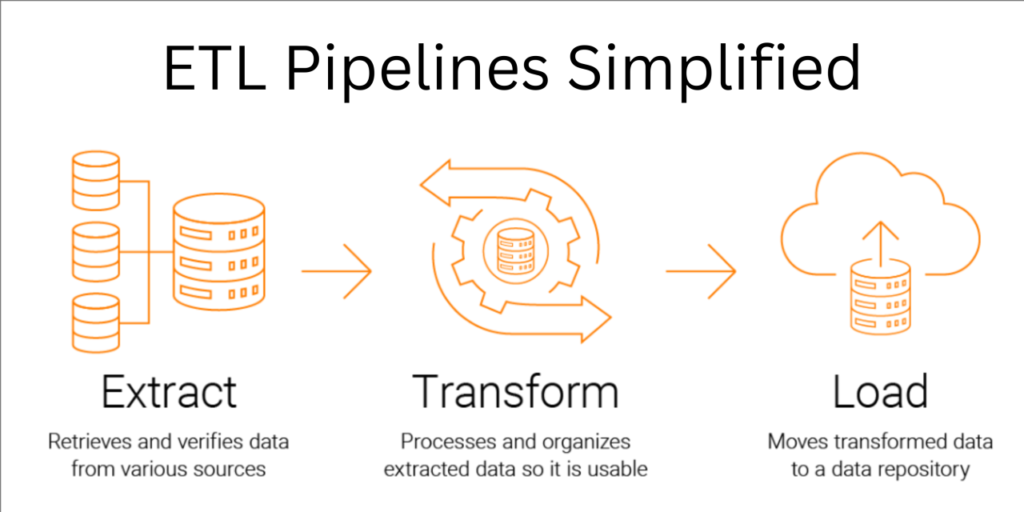
Spreadsheet formulas can simulate ETL (Extract, Transform, Load).
Steps:
- Extract raw data
- Transform using formulas
- Load into dashboard
Integration with Business Intelligence Systems
Spreadsheet formulas often feed BI tools.
Workflow:
Spreadsheet → Clean Data → BI Tool → Visualization
Tools:
- Power BI
- Tableau
Performance Optimization in Large Datasets
Large spreadsheets require optimization.
Techniques:
- Use helper columns
- Avoid full-column references
- Minimize volatile functions
- Use efficient formulas
Audit and Debugging Techniques
Debugging complex formulas is critical.
Methods:
- Formula auditing tools
- Trace precedents
- Break formulas into steps
Spreadsheet Formulas for Financial Modeling
Used extensively in finance.
Applications:
- Revenue forecasting
- Budgeting
- Investment analysis
Advanced Error Trapping Systems
Beyond IFERROR, use layered validation.
Example:
=IF(ISBLANK(A1), “Missing”, IFERROR(A1/B1, “Error”))
Automation Using Macros and Formula Integration
Combine formulas with automation tools.
Example:
- Use formulas for calculation
- Use macros for execution
Data Security in Spreadsheet Formulas
Protect sensitive data.
Techniques:
- Lock cells
- Protect sheets
- Use permissions
Spreadsheet Formulas in Enterprise Systems
Large organizations use spreadsheets for:
- Financial reporting
- Forecasting
- Data consolidation
Building Reusable Formula Templates
Templates improve efficiency.
Examples:
- Budget template
- Sales tracker
- KPI dashboard
Future of Spreadsheet Formulas with AI
AI is transforming spreadsheets.
Trends:
- Natural language formulas
- Auto-suggestions
- Predictive analytics
Spreadsheet Formulas for Data Science
Used in early stages of data science.
Applications:
- Data preprocessing
- Feature engineering
- Exploratory analysis
Advanced Tips for Efficiency
Improve performance:
- Avoid volatile functions
- Limit large ranges
- Use efficient formulas
Spreadsheet Formulas for Reporting
Reports become automated with formulas.
Example:
Monthly performance report:
- Revenue calculation
- Growth percentage
- Trend analysis
Collaboration Using Spreadsheet Formulas
Modern tools allow multiple users.
Benefits:
- Real-time updates
- Shared insights
- Team productivity
Common Mistakes to Avoid
- Overcomplicated formulas
- Hardcoding values
- Ignoring errors
- Not documenting formulas
Real-World Case Study
Case: Retail Business
A retail company used spreadsheet formulas for:
- Inventory tracking
- Sales forecasting
Results:
- Reduced manual work
- Improved accuracy
- Better decision-making
Spreadsheet Formulas vs Automation Tools
Spreadsheet Formulas:
- Easy to use
- Flexible
Automation Tools:
- More scalable
- Requires technical setup
Building a Career with Spreadsheet Skills
Roles:
- Data Analyst
- Business Analyst
- Financial Analyst
Why Important:
- High demand
- Foundational skill
Future Trends in Spreadsheet Formulas
- AI-assisted formulas
- Natural language queries
- Smart automation
Common Errors in Spreadsheet Formulas
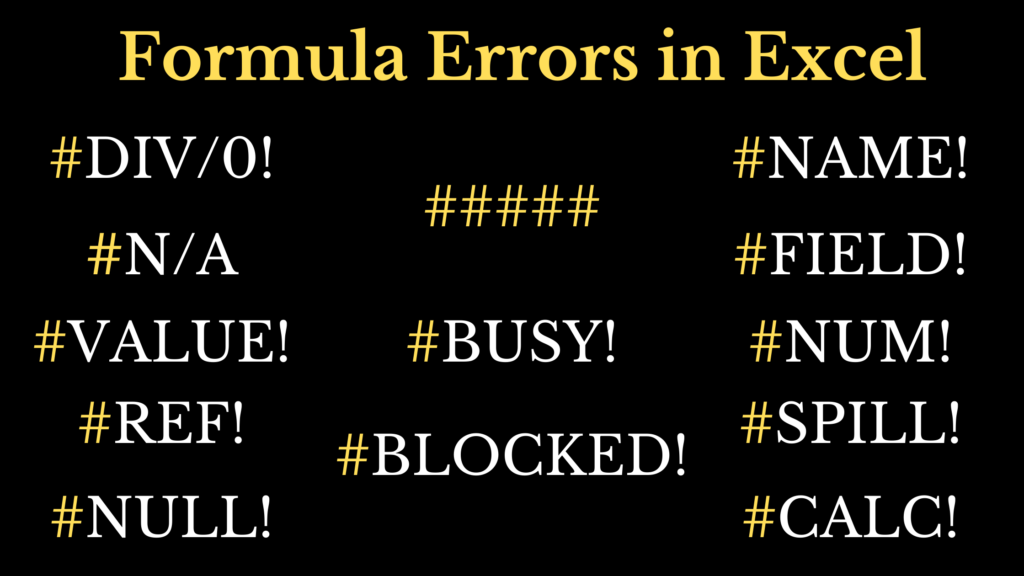
Typical errors:
- #DIV/0
- #VALUE
- #REF
Causes:
- Incorrect references
- Invalid data types
- Missing values
Best Practices
Follow these tips:
- Use clear cell references
- Avoid hardcoding values
- Break complex formulas
- Test formulas
Spreadsheet Formulas vs Functions
Formulas:
- Custom expressions
Functions:
- Predefined operations
Example:
- Formula: =A1 + A2
- Function: =SUM(A1:A2)
Automation Using Spreadsheet Formulas
Spreadsheet formulas enable automation.
Examples:
- Auto-updating dashboards
- Real-time reports
- Dynamic calculations
Integration with Data Analysis
Spreadsheet formulas are widely used in data analytics.
Tools:
- Excel
- Google Sheets
Applications:
Future of Spreadsheet Formulas
The future includes:
- AI-powered formulas
- Smart suggestions
- Automation tools
Conclusion
Spreadsheet formulas are essential tools for modern data handling. From simple calculations to advanced analytics, they enable efficient and accurate data processing.
Mastering spreadsheet formulas can significantly enhance productivity, improve decision-making, and provide a strong foundation for data-driven careers.
FAQ’s
What are the basic formulas in a spreadsheet?
What are the basic formulas in a spreadsheet?
Basic spreadsheet formulas include SUM, AVERAGE, COUNT, MIN, MAX, and IF, which are used to perform calculations, analyze data, and automate tasks efficiently.
What are spreadsheet formulas?
Spreadsheet formulas are expressions used to perform calculations and manipulate data in a spreadsheet, using functions, cell references, and operators to automate tasks and analysis.
What are the 5 basic Excel skills?
The five basic Excel skills include data entry and formatting, using formulas and functions, creating charts, sorting and filtering data, and basic data analysis, helping users manage and analyze data efficiently.
What are the 10 examples of spreadsheets?
Ten examples of spreadsheet use cases include budget tracking, expense management, sales reports, inventory management, payroll processing, project planning, data analysis, attendance tracking, financial forecasting, and reporting dashboards.
What are the 5 main functions of Excel?
The five main functions of Excel are SUM, AVERAGE, COUNT, IF, and VLOOKUP, which are commonly used for calculations, data analysis, and decision-making.


